hi, i'm

If your website’s contact form hasn’t sent you anything in a while, it may not be because nobody is writing. Your site is probably still saving every submission. The email that’s supposed to tell you about it is the part that’s failing, and it fails silently: no error, no bounce, just nothing in your inbox.
And it’s rarely just the forms. Every email your site sends goes out the same way: password resets, new user registrations, order receipts and store notifications, event sign-ups, and the security and update alerts meant for whoever looks after the site. If one isn’t arriving, the others probably aren’t either.
We see this more and more on WordPress sites, and the cause is almost always the same. The good news is the fix is a one-time setup, and nothing has to be rebuilt.
Why WordPress’s default email is unreliable
Out of the box, WordPress hands every email to the web server’s built-in PHP mailer and hopes for the best. Nothing checks whether it arrives. Most hosts cap it, don’t log it, or, on some hosts, don’t set it up at all.
The bigger problem is who the email says it’s from. WordPress sends either “from” an address at your domain, like [email protected], or from the site administrator email in Settings → General. Neither one works reliably:
- From your domain: your web server isn’t on your domain’s list of approved senders, so the message looks forged.
- From the site administrator email: that’s whoever set up the site, which can be an agency’s address, a personal Gmail or someone who’s since left. It often isn’t your domain at all, and the web server isn’t allowed to send as it either.
Your domain has a few DNS records that tell the world who is allowed to send as you:
- SPF lists the servers allowed to send mail for your domain (usually just Microsoft 365 or Google Workspace).
- DKIM signs each message so the receiver can check it really came from an approved sender.
- DMARC tells receivers what to do with mail that fails those checks: let it through, send it to spam, or reject it.
A form notification from your web server fails all three. To Microsoft or Google, it looks exactly like a scammer pretending to be you. As more organizations tighten DMARC, and as Microsoft and Google get stricter about it, those messages go from “lands in spam” to “never arrives at all”.
That’s also why setting it up halfway isn’t enough. Changing the “from” address, or even installing an SMTP plugin, won’t help if the mail still leaves from the web server or from a sending service your DNS doesn’t list. The mail has to go out through an account your domain actually approves.
Changing the recipient address doesn’t help. The problem is who the email claims to be from, not who it’s going to.
What it looked like for one of our clients
A client recently wrote to us: they hadn’t gotten a single form notification in months, legitimate or otherwise. Their two contact forms are where real inquiries come in, so this mattered.
We checked the site first. The forms were working fine, and every submission was saved in WordPress, so nothing was lost. Their notifications were set to send “from” their own info@ address, but their domain only lets Microsoft 365 send as that address. Microsoft saw the website’s messages as spoofed and quietly dropped them.
We installed an SMTP plugin and set it up to send through their own Microsoft 365 account. Because that connection has to be approved by whoever holds the keys to the Microsoft account, the last step was a short call with the client to connect it together.
If you’re in the same spot, the first thing to know is that your past submissions are probably still in your WordPress dashboard (in Gravity Forms, under Forms → Entries).
The fix: send through someone who’s allowed to
The answer is to stop sending from the web server and route your site’s email through a sender your domain already trusts. An SMTP plugin (we recommend WP Mail SMTP) handles this inside WordPress. There are two ways to set it up:
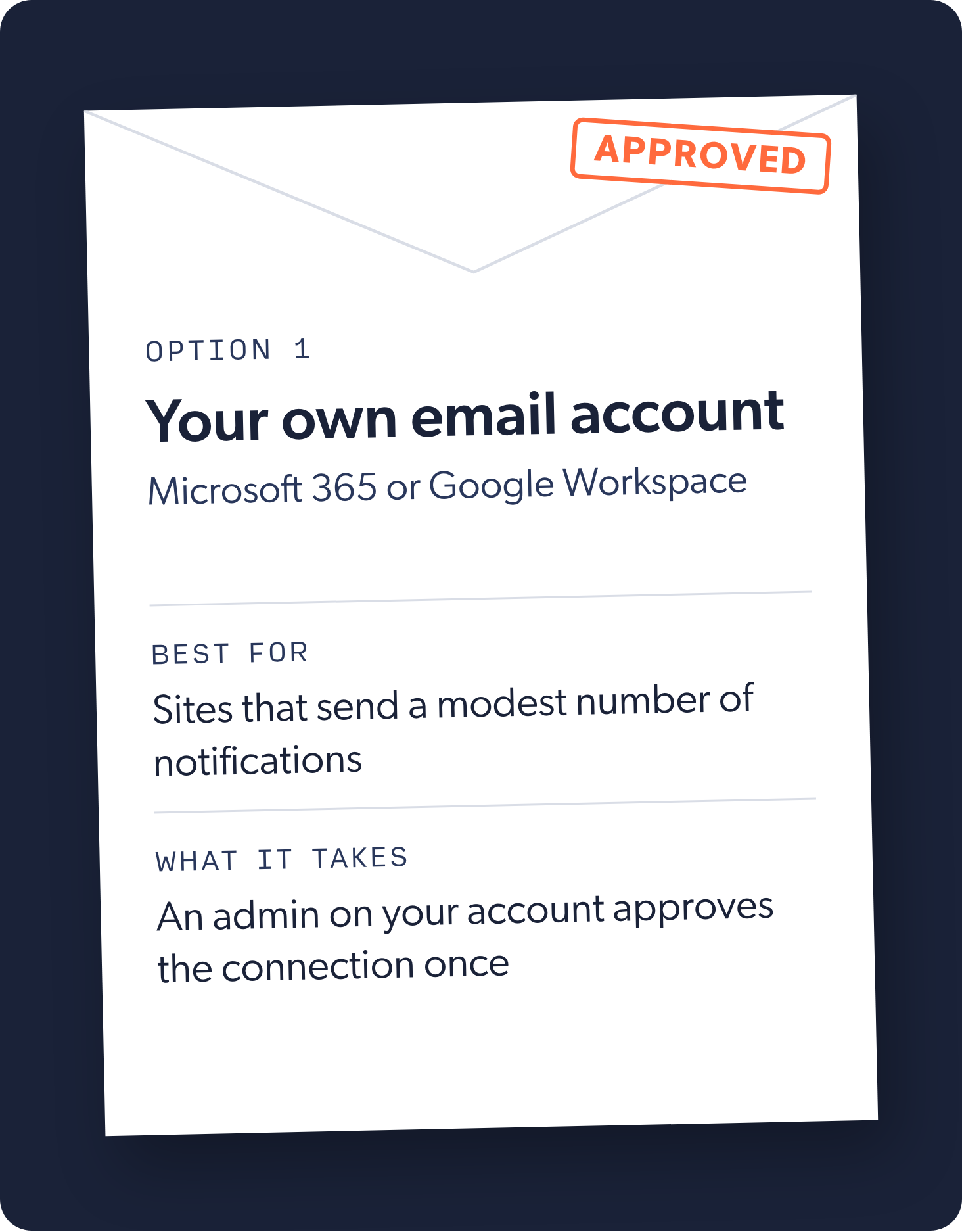
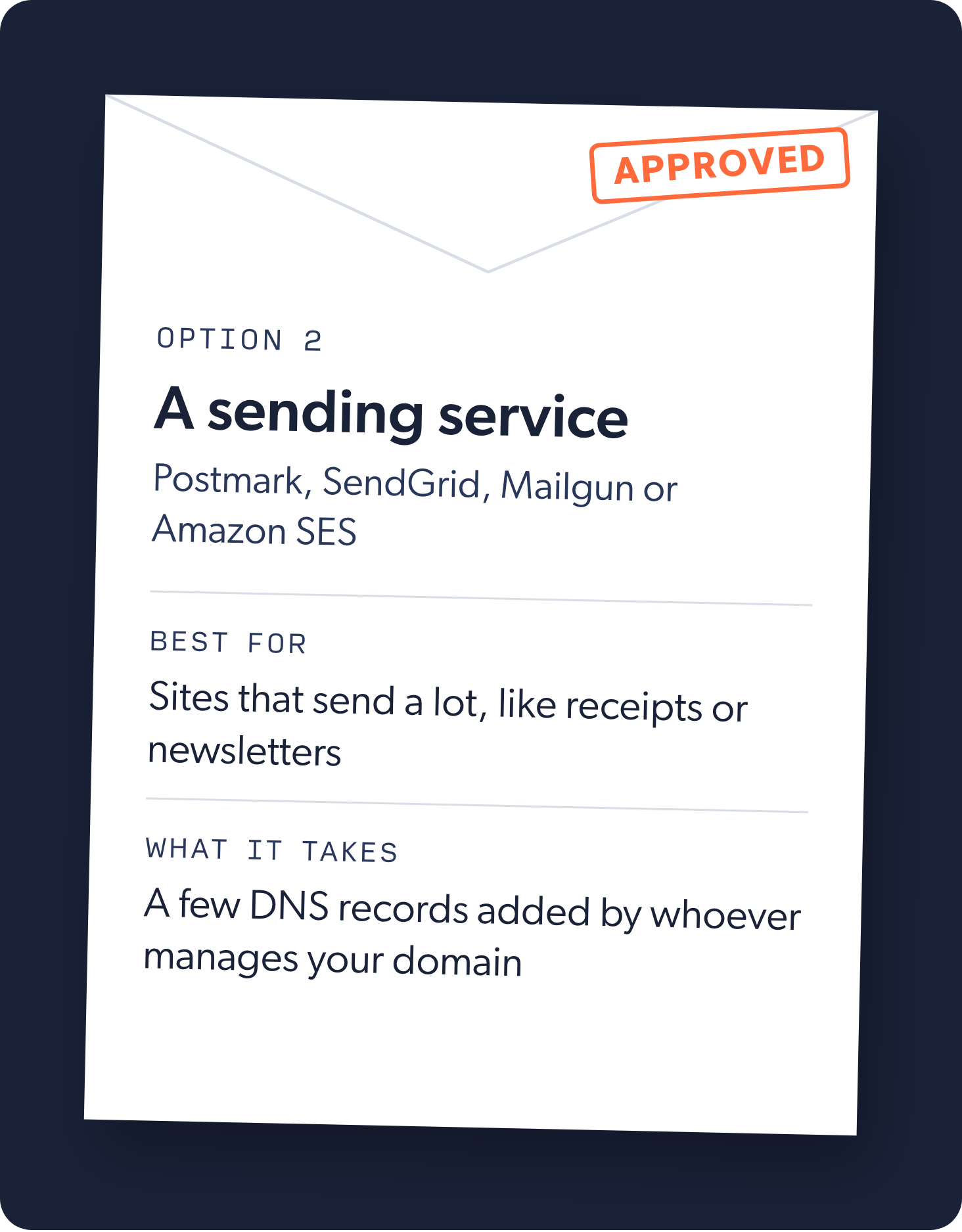
Either way, your messages now pass SPF, DKIM and DMARC, and they arrive. Both are one-time setups. After that, the plugin also keeps a log of every email the site sends, so the next time someone asks “did that go out?” there’s an answer.
What your host says
None of the major managed WordPress hosts guarantee that default WordPress email arrives. Each of them points you to a third-party sender.
- WP Engine sends default WordPress email with an hourly cap it doesn’t publish, and says its servers are “not optimized for sending mail.” It recommends a transactional provider like Mailgun, Gmail or Brevo, through WP Mail SMTP or Post SMTP.
- Kinsta sends it with a daily cap (150 to 3,000 emails depending on your plan), but that mail doesn’t support DMARC alignment. It recommends a third-party SMTP service like SendGrid, Mailgun or Mailjet, especially if your domain uses DMARC.
- Pantheon doesn’t set it up at all: WordPress “requires a configured outgoing email service,” and Pantheon strongly advises against the server’s own mailer. It recommends a provider with an API, like Postmark, SendGrid or Mailgun.
In practice, if your domain uses Microsoft 365 or Google Workspace with DMARC, plan on an SMTP plugin no matter where you’re hosted.
Is this happening to you? A quick check
- Submit your own contact form, using an address that isn’t at your company’s domain (a personal Gmail works).
- Wait ten minutes. Check the inbox the notification should go to, and its spam or junk folder.
- Nothing? Look in your WordPress dashboard under your form plugin’s entries. If your test is there, the form works and the email is what’s failing.
- Ask whoever manages your website whether the site sends mail through an SMTP plugin, and through which account.
You shouldn’t find out months later that your contact form went quiet. Catching things like this early is a big part of what our WordPress maintenance plans are for: your site stays updated, secure and actually sending its email, and there’s a real person to ask when something seems off. Curious? Just drop us a line.
Already working with us? Just reach out and we’ll take a look.
We like these hosts and tools, and some links above are referral links: we may earn a commission at no cost to you. It never changes what we recommend.